- Press the Windows + R key on your keyboard in combination to bring up the run box.
- In the run box, type and enter:
%appdata%\microsoft\Windows\Network Shortcuts
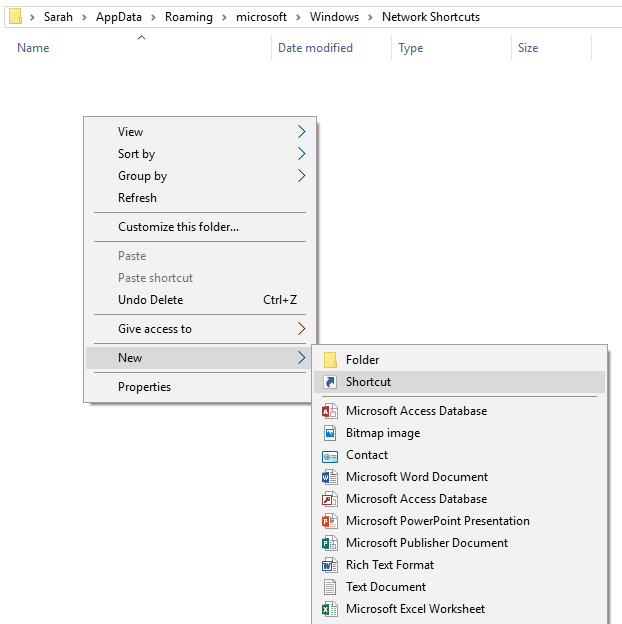
This is the location where Windows will look for additional shortcuts. - Right click on the empty space, select ‘new’, then select ‘shortcut.’
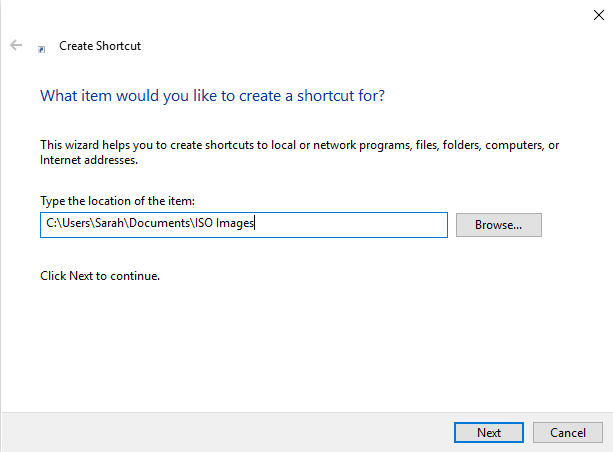
- In the “Create shortcut” dialogue box that pops up, enter the location of the program, file, or folder that you would like to insert as the shortcut. Click next, type a name for the shortcut, and then click finish.
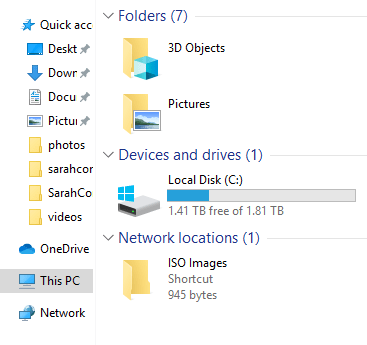
- Click on “This PC” and you should see the shortcut appear under “Network Locations.”

 The Network Custodian